Google Drive Ingestion
Google Drive Ingestion lets you pull files stored in Google Drive directly into your AI Data Foundry project.
This document covers Google Drive-specific topics only. For behavior common to all sources — file ingestion, automatic schedules, job monitoring — see the Ingestion Overview.
Prerequisites
Google Drive sources authenticate with a Google Cloud service account. Create a service account and key as below, then share the target folder with that service account.
1. Enable the Google Drive API and create a service account
- In the Google Cloud Console, select or create a project.
- Under APIs & Services → Library, search for Google Drive API and click Enable.
- Under IAM & Admin → Service Accounts → Create service account, create a new service account. (No IAM role is required — access is granted through Drive sharing instead.)
- Open the service account and choose Keys → Add key → Create new key → JSON to download the key file.
The downloaded JSON must contain at least
client_emailandprivate_key. This entire file is the credential you will use to connect.
2. Share the target folder with the service account
A service account has no files in its own Drive, so you must share the folder that contains the files you want to ingest with the service account's email.
- In Google Drive, right-click the folder → Share.
- Add the service account email (the
client_emailvalue from the JSON, in the form...@....iam.gserviceaccount.com) with Viewer access or higher. - (Optional) To ingest a specific folder only, note its Folder ID — the string after
folders/in the folder's URL.- Example:
https://drive.google.com/drive/folders/1AbC...XyZ→ the Folder ID is1AbC...XyZ
- Example:
The connection uses read-only access only (
https://www.googleapis.com/auth/drive.readonly). The ingester never modifies or deletes files.
Connecting a Google Drive Source
In the Connect a new source dialog, select Google Drive as the source type (it is selected by default) and fill in the fields.
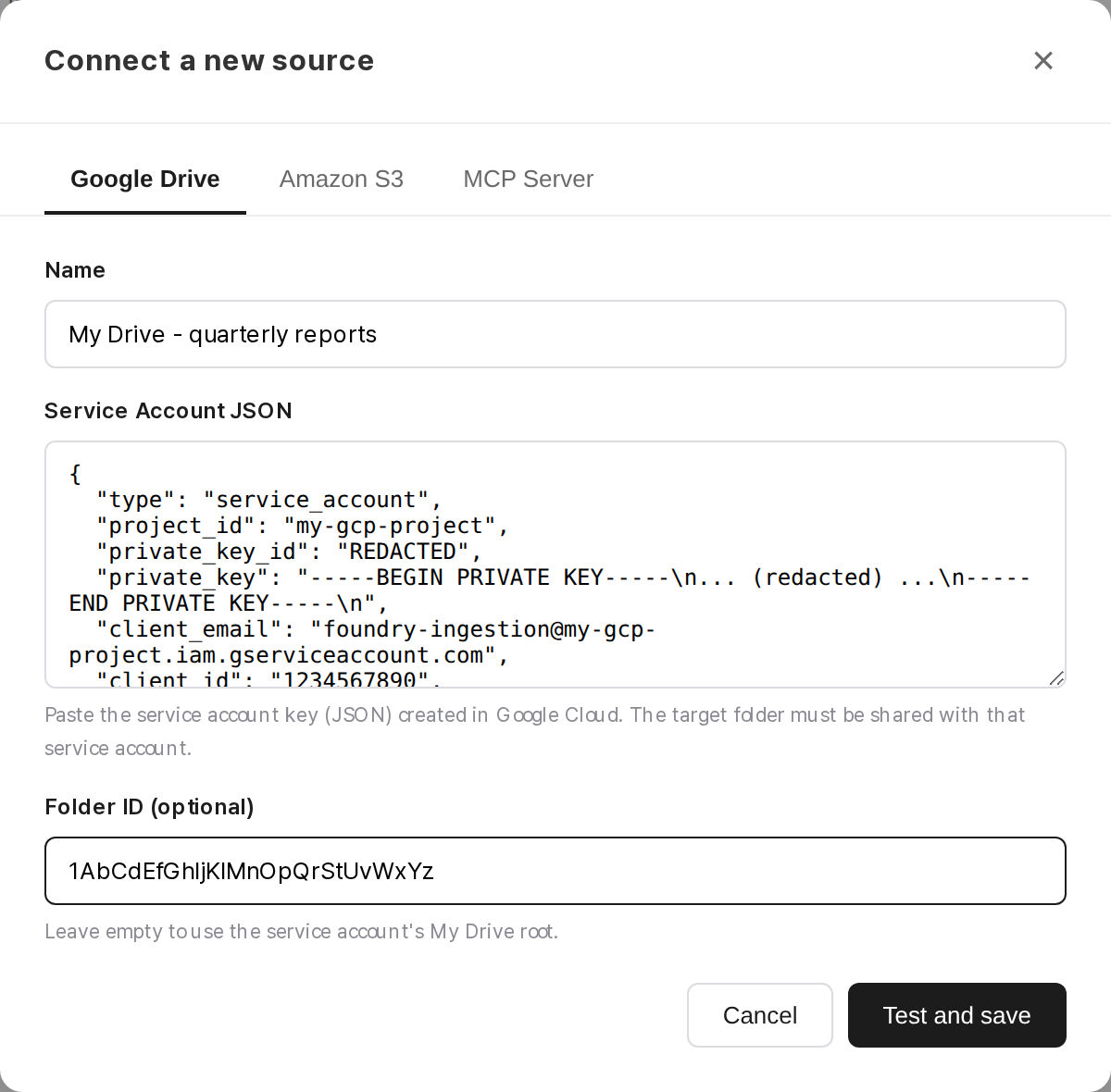
| Field | Required | Description |
|---|---|---|
| Name | Yes | A friendly name for this source (e.g., "My Drive - quarterly reports") |
| Service Account JSON | Yes | Paste the entire service account key (JSON) you downloaded |
| Folder ID (optional) | No | Enter a Folder ID to ingest a specific folder. Leave empty to use the service account's My Drive root |
| Include subfolders | No | When checked, subfolders of the target folder are also traversed and ingested |
Click Test and save to automatically test that the specified folder (or root) is accessible. If the test passes, the source is registered.
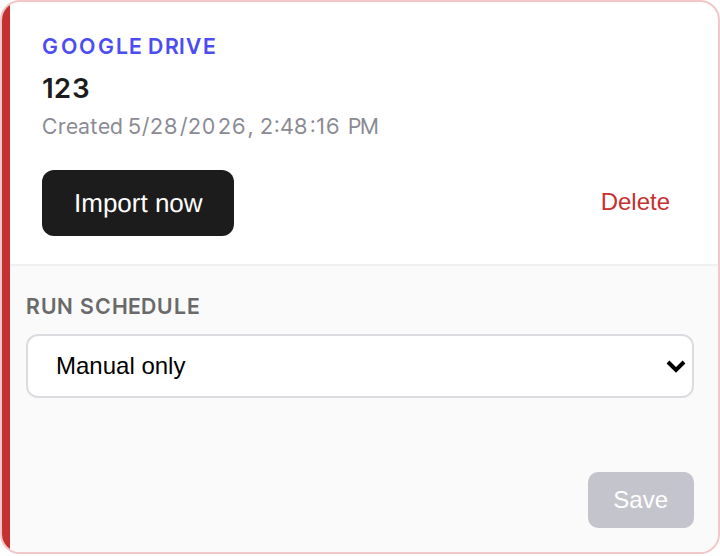
Google Drive-Specific Ingestion Notes
For the common ingestion behavior (full scan, incremental runs, deduplication, per-run limit), see the Ingestion Overview. The following additionally apply to Google Drive sources.
Subfolder Traversal
By default, ingestion targets only the files directly inside the specified folder (or My Drive root if the Folder ID is empty). To also ingest files in subfolders, check Include subfolders when connecting (or editing) the source, or add a separate source using that subfolder's Folder ID.
Google Document Format Conversion
Google-native files are automatically converted to Office formats when downloaded.
| Source (Google) | Converted to |
|---|---|
| Google Docs | .docx |
| Google Sheets | .xlsx |
| Google Slides | .pptx |
All other files (PDF, images, etc.) are imported as-is. Other Google-native types such as Drawings and Forms have no conversion target and may not be ingested.
FAQ
For common questions (missing files, re-ingesting modified files, deleting sources, etc.), see the Ingestion Overview.
Connection to the source fails
The connection test verifies access to the specified folder (or root). If it fails, check the following.
- Make sure the target folder is shared with the service account email (
client_email). (Most common cause.) - Make sure the Google Drive API is enabled in your Google Cloud project.
- If you entered a Folder ID, verify it is correct (the string after
folders/in the folder URL). - Make sure the pasted service account JSON is valid JSON containing
client_emailandprivate_key.
Files in subfolders are not ingested
Check that Include subfolders is enabled — you can turn it on via Edit on the source card. Alternatively, to ingest a specific subfolder only, share that folder with the service account and add a source using its Folder ID.
How are Google Docs / Sheets ingested?
Google-native files are automatically converted to .docx / .xlsx / .pptx respectively. The original Google file is left untouched; only the converted copy is imported into the project.